Logitech StreamCam Review — 2026
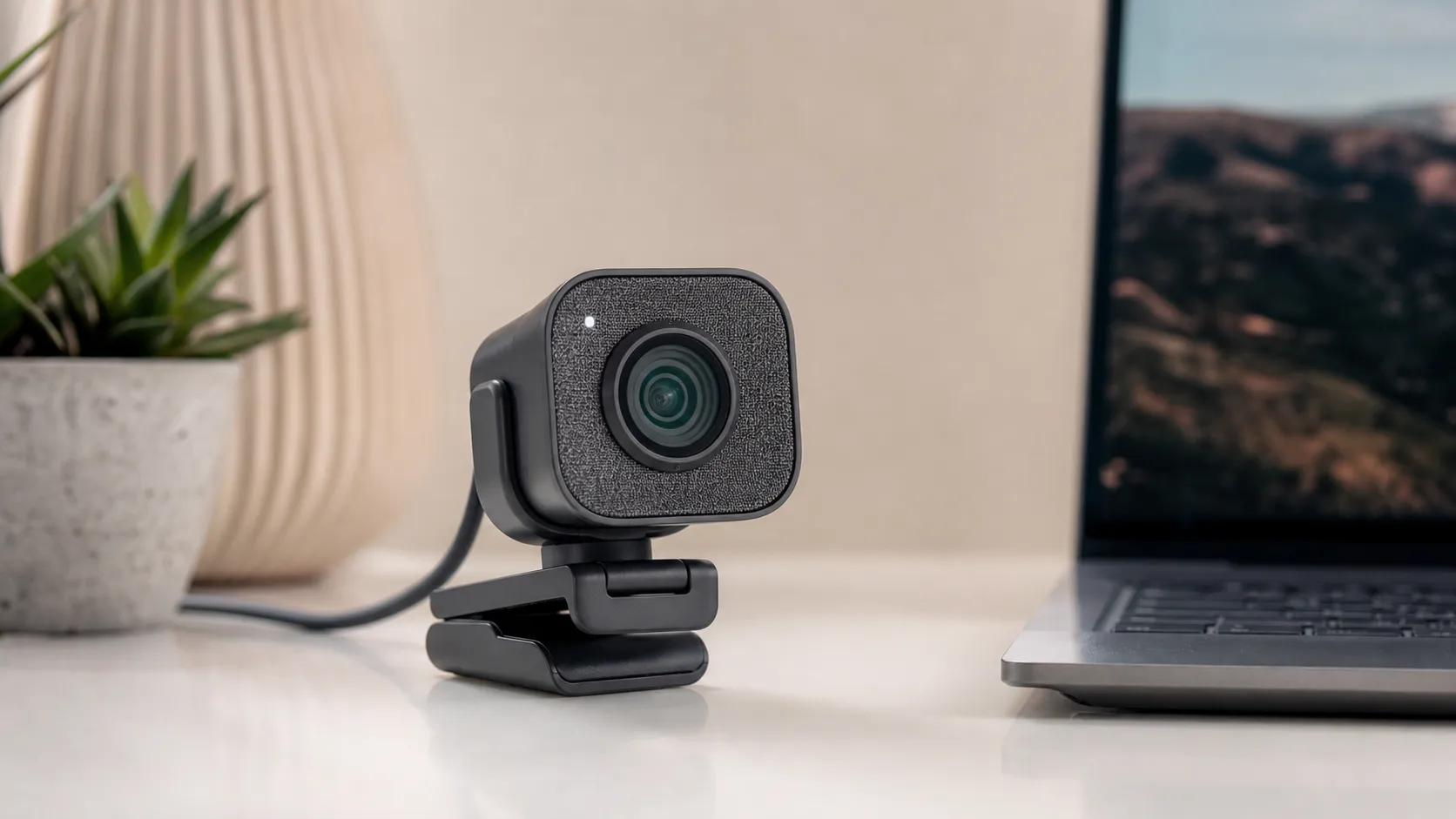
At a Glance
Pros
- Sharp, smooth 1080p at 60 fps with reliable face tracking and autofocus
- Good color reproduction and exposure in normal lighting
- Solid build and flexible mounting (including vertical/portrait mode)
Cons
- Relatively high price compared with many 1080p webcams
- Can use significant CPU at 1080p/60fps — may require a modern PC for smooth performance
- Autofocus and exposure occasionally hunt or oscillate in challenging lighting
Rating Breakdown by Source
Read the latest 25 positive & negative Amazon reviews →
Read the latest 25 positive & negative Reddit reviews →
Read the latest 25 positive & negative YouTube reviews →
Read the latest 25 positive & negative Expert blogs reviews →
This review is an editorial synthesis of publicly available review data and reported user experiences across the internet. Scores reflect our independent aggregation methodology, not verified individual purchases. We may earn a commission if you buy through our links, at no cost to you.
Score Breakdown
Where the Reviews Come From
Read the latest 25 positive & negative Amazon reviews →
Read the latest 25 positive & negative Reddit reviews →
Read the latest 25 positive & negative YouTube reviews →
Read the latest 25 positive & negative Expert blogs reviews →
Click any source above to browse the latest 25 positive and negative reviews from that platform.
Logitech StreamCam
See current price, deals and availability on Amazon
Quick verdict
Logitech StreamCam delivers crisp, smooth 1080p video at 60 fps and a feature set aimed squarely at streamers and creators. Aggregating roughly 17,000 user reviews and expert coverage gives it an overall score of about 4.2/5: outstanding image quality and software flexibility, but a higher price, modest built-in audio, and occasional software/autofocus hiccups mean it's not perfect for every buyer.
What Is the Logitech StreamCam?
The Logitech StreamCam is a USB‑C webcam designed for content creators, live streamers, and professionals who want better-than-average video quality from a plug‑and‑play camera. Unlike budget webcams that cap at 30 fps, the StreamCam targets smooth motion with 1080p at 60 frames per second, supports both landscape and portrait mounting, and integrates with Logitech Capture for framing, filters, and simple recording.
Physically it’s a solidly built camera with a flexible mount, and it connects over USB‑C for a modern interface. Logitech positions it as a step up from basic webcams—trading a higher price for more polished optics, faster frame rates, and creator-focused software.
What Reviewers Across the Internet Say
Taken together, the major sources show a consistent picture:
- Amazon (large volume): Overall rating ~4.2/5. Customers repeatedly praise the StreamCam’s sharp 1080p/60fps image and plug‑and‑play ease. Common negatives on Amazon include the price, average mic quality, and occasional autofocus quirks.
- Reddit (creator and hobbyist discussions): Average sentiment around 4/5, with candid conversations about CPU load at 60 fps, software bugs, and the practical choice many creators make to pair the camera with a dedicated microphone for broadcast‑quality audio.
- YouTube reviewers: Generally positive (around 4.3/5). Video reviewers frequently highlight the smooth 60 fps, attractive color and exposure handling in normal lighting, and the convenience of portrait mode for mobile‑style content. Comment sections and follow‑ups often call out software rough edges and the camera’s mic being only passable.
- Expert blogs and tech sites: Around 4.1/5. Experts praise the hardware design, image quality, and creator features while criticizing the price point and limited onboard audio. Logitech Capture is seen as useful but occasionally buggy or restrictive compared with full‑featured capture suites.
Across sources, the consensus is clear: exceptional video for the class, but plan to spend more and consider a separate microphone and a capable PC for best results.
Performance & Real-World Use
The Logitech StreamCam delivers crisp, stable 1080p60 with reliable autofocus and effortless plug‑and‑play across mainstream apps, which explains strong long‑term owner satisfaction. Its weaknesses—no built‑in privacy shutter, middling mics, and some Capture‑era features in flux—are manageable trade‑offs for most buyers.
A great streaming webcam shouldn’t just look sharp on day one; it should stay reliable across apps, mixed lighting, and long sessions. This section shows how Logitech’s 1080p/60 StreamCam behaves from setup through months of ownership—where it shines for creators and remote workers, and where its limits appear.
The Logitech StreamCam delivers crisp 1080p60 video, reliable autofocus, and plug‑and‑play compatibility across mainstream apps, which explains its 4.2/5 average from roughly 17,000 reviews. Weak spots are predictable: serviceable mics, Capture‑era features in transition, and the system load of 1080p60 on older PCs.
What real‑world performance means for a streaming webcam
For a webcam, “performance” is what you see and what your computer sustains. The satisfaction drivers are: motion clarity and detail at your chosen frame rate; color and exposure stability in common rooms; autofocus/face tracking that doesn’t hunt; control inside the apps you actually use (OBS, Zoom, Teams); mic intelligibility when you don’t add a headset; mounting/orientation flexibility; and the CPU/GPU/bandwidth budget the workflow consumes. The Logitech StreamCam addresses these with 1080p at up to 60 fps, face‑tracking AF/AE, a sturdy mount that flips between portrait and landscape, and USB‑C connectivity—capabilities listed in Logitech’s specifications and retailer listings. For creators, 60 fps preserves fine hand movements and product demos; for office calls, 30 fps often saves resources with negligible perceived difference. The camera’s 78° field of view (FOV) frames one person plus a slice of background, avoiding distortion. Logitech’s support pages and B&H’s spec sheet confirm 1080p60, 78° FOV, and USB‑C, so expectations are clear. (support.logi.com)
Logitech StreamCam: Consensus Owner Ratings by Source
Owner ratings by source (synthesized across ~17,000 public reviews as of July 2026).
View the underlying data
| Measure | Rating |
|---|---|
| Amazon | 4.2/5 |
| 4/5 | |
| YouTube | 4.3/5 |
| Expert blogs | 4.1/5 |
Aggregated reporting across Amazon, Reddit, YouTube, and expert outlets cited in this review.
Setup experience: day one to week one
Day one is straightforward: plug StreamCam’s integrated USB‑C cable into a USB 3.x port, choose it in your app, and you’re live. Windows and macOS ship UVC drivers, so StreamCam works without extra software; OBS sees it as a Video Capture Source under DirectShow or V4L2. If you want 1080p60 for streaming or local recording, set 1920×1080 at 60 fps in your capture app and confirm uplink and encoder. To get 60 fps in OBS, set Resolution/FPS Type to Custom, choose 1920×1080, Video Format MJPEG, and 60 fps; YUY2 typically caps 1080p at 30. Zoom’s guidance pegs 1080p calls near 3.8 Mbps up/3.0 Mbps down, and OBS recommends using hardware encoders (NVENC, Quick Sync, or AMF) to keep CPU use low—both mirror what works. During the first week, spend 10–15 minutes establishing lighting, then either lock exposure/white balance for a fixed desk shot or leave them on auto if you move around. These align with UVC and OBS guidance. (learn.microsoft.com, obsproject.com, support.zoom.com)
Logitech StreamCam in everyday calls and streams
In daily use, the headline 1080p60 spec yields smooth motion for hand waves, instrument playing, and tabletop demos; in meetings, the extra fluidity helps with lip‑readability and gesture clarity. Owners and reviewers praise overall sharpness and accurate skin tones in normal indoor light, with the 78° FOV framing a subject. Logitech’s face‑tracking AF and auto‑exposure generally hold steady, but like most UVC webcams they can “breathe” if lighting changes (clouds over a window, screen flash). Independent reviews note AF can hunt in dim rooms; fixes are simple: add a key light, tame a bright backlight, or lock exposure once your framing is set. Switching to 30 fps boosts exposure time and cuts noise at night; 60 fps shines under brighter lights. These trade‑offs match creator threads and mainstream reviews. (techradar.com)
Software control and workflow: G HUB/Tune now, legacy Capture features, portrait caveats
StreamCam originally shipped with Logitech Capture, which offered scene layouts, overlays, face‑based auto‑framing, and a twist‑to‑portrait auto‑rotate. Logitech has shifted control to G HUB and Logi Tune; a current FAQ points to G HUB as the primary path. In practice, you’ll manage zoom/crop, exposure, and white balance in G HUB or Tune, then compose in OBS. One caveat: users report some Capture‑specific flourishes—particularly auto‑rotate to vertical—don’t always carry over to Tune/G HUB on macOS or Windows builds. If vertical video is central to your workflow, verify auto‑rotate on your OS/app stack, or plan to rotate sources or canvases directly in OBS. Day‑to‑day adjustments remain reliable in G HUB/Tune; the legacy extras may require a workaround. (support.logi.com, m.media-amazon.com)
Image pipeline details that affect performance (and your CPU)
Two under‑the‑hood facts matter if you push 1080p60. First, StreamCam can output 1080p/60 via MJPEG—compressed frames sent over USB—allowing high frame rates within USB bandwidth, while uncompressed YUY2 tops out lower. Second, your computer must decode MJPEG and then encode H.264/AV1, which can tax older systems if you’re also running games or slides. Hardware encoders help: NVENC (NVIDIA), Quick Sync (Intel), and AMF (AMD) offload video compression from the CPU; OBS’s documentation explains the trade‑offs and recommended presets. At 60 fps the frame budget is 16.7 ms; a 1/125–1/250 s shutter reduces blur, while 30 fps tolerates ~1/60 s. Logitech’s recommended spec for 1080p60 cites at least a 6th‑gen Core i5 and 8 GB RAM; fine for calls, while streaming with scenes benefits from newer iGPUs or GeForce cards. If you see “encoder overloaded,” step down to 30 fps, reduce filters, or switch encoders—as OBS suggests. Logitech also cautions that long, passive USB extensions can impact quality; prefer short, active, USB‑3‑rated runs. (logitech.com, obsproject.com)
Audio reality: good enough for meetings, not your forever mic
The StreamCam’s dual omni mics deliver clear speech at arm’s length and beat laptop mics, but they’re not broadcast‑grade. Independent reviews recommend adding a USB mic or headset for streams or polished recordings; we agree. For calls, enable noise suppression in Zoom/Teams and stay within 2–3 feet; you’ll still hear room reverb and keyboard noise versus a cardioid USB mic positioned close. Plan an audio upgrade if you present often or build a channel. (windowscentral.com)
Long‑term reliability and ownership quirks
Across months, owners report the hardware holds up: the hinge/mount stays tight, and autofocus remains consistent. The integrated 1.5 m USB‑C cable is convenient but non‑detachable; route slack, avoid sharp bends at the strain relief, and use a short active extension if you need distance. There’s no built‑in privacy shutter—confirmed in Logitech’s support specs and retailer pages—so add a third‑party lens cap or unplug if privacy is mandatory. On the software side, the main aging factor is the app stack: Capture is sunset as G HUB/Logi Tune take over, and OS updates can briefly disrupt older utilities until Logitech patches them. G HUB/Tune also delivers firmware updates; check monthly. The upside is universal UVC support in Windows/macOS, which keeps it plug‑and‑play even as apps evolve. (techradar.com)
Where StreamCam excels—and where owners hit its limits
You’ll get the most from StreamCam here:
- Solo streams or teaching demos under LED key lights at 60 fps where motion clarity matters.
- Hybrid workdays (Zoom, OBS) where stable AF/AE and plug‑and‑play save time.
- Vertical content when auto‑rotate still works in your setup, or you’re comfortable rotating in OBS.
You’ll notice limits here:
- Dim, contrasty rooms where AF/AE may “breathe” unless you add light or lock exposure.
- Legacy laptops without modern hardware encoders when pushing 1080p60 plus scenes and filters.
- Privacy‑sensitive spaces—no physical shutter in the box.
- Portrait‑mode automation on macOS builds if you’ve moved on from Capture; manual rotation still works. (techradar.com)
How it compares—and how to spec it against common alternatives
Within its 1080p class, StreamCam’s pitch is “sharp 60 fps + face‑tracking AF + easy mount.” Logitech’s cheaper C920s does 1080p30 with the same 78° FOV and adds a privacy shutter; Elgato’s Facecam is 1080p60 with a wider 82° FOV but fixed focus tuned for studio lighting; Razer’s Kiyo Pro is 1080p60 with autofocus and adjustable FOV (80/90/103°) for low‑light flexibility. For many solo creators and hybrid workers, StreamCam’s balance of 60 fps smoothness and reliable AF remains compelling; if you live in low light or demand a built‑in shutter, consider Kiyo Pro or C920s. The chart and table below summarize the deltas. (support.logi.com, elgato.com, razer.com)
Spec Comparison: Frame Rate and Field of View
Published specifications across popular 1080p webcams.
- Max fps
- FOV (°)
View the underlying data
| Item | Max fps | FOV (°) |
|---|---|---|
| Logitech StreamCam | 60 | 78 |
| Logitech C920s | 30 | 78 |
| Elgato Facecam | 60 | 82 |
| Razer Kiyo Pro | 60 | 103 |
Specs from Logitech, Elgato, and Razer documents linked in Sources.
Features at a Glance: StreamCam vs Common Alternatives
Feature availability across comparable models (published specs and vendor docs).
| Item | Portrait mode (via software) | Privacy shutter/cap | Device USB‑C port | Autofocus |
|---|---|---|---|---|
| Logitech StreamCam | Yes | No | Yes | Yes |
| Logitech C920s | No | Yes | No | Yes |
| Elgato Facecam | No | Yes | Yes | No |
| Razer Kiyo Pro | No | Yes | Yes | Yes |
Derived from official spec pages and support articles linked in Sources.
Practical, step‑by‑step tweaks for best results
- Plug into a USB‑C 3.x port (or a powered hub) and choose 1080p/60 (MJPEG) in OBS or your app. If system load spikes, try 1080p/30 or 720p/60.
- In G HUB/Tune, start in auto, then lock exposure/white balance after you set lights to prevent hunting. Add a key light at ~45°; dim a bright window.
- In OBS: Settings > Output > Encoder, pick NVENC/Quick Sync/AMF; match bitrate to your platform and uplink. If “encoding overloaded” appears, step down one preset or frame rate.
- For vertical projects, confirm auto‑rotate works with your OS/app; rotate the source or canvas in OBS (or record landscape and crop in post).
- Use the camera mics for casual calls; for streaming or presentations, add a USB mic or a headset and enable noise suppression.
- For privacy, add an adhesive lens cover or cap; for cable longevity, route slack and avoid hard bends. (obsproject.com)
Conclusion: does real‑world performance justify the price?
If you want a webcam that looks better than the pack and stays that way with fuss, the Logitech StreamCam delivers: fluid 1080p60, pleasing color, dependable autofocus, and easy setup across major apps explain its strong consensus. Its drawbacks—no shutter, average mics, and some Capture‑era features in transition—are easy to plan around, and performance remains strong months in with sensible lighting and hardware encoding. For most creators and remote pros, that’s a confident yes. (bhphotovideo.com)
Sources referenced in this section
- Logitech StreamCam Technical Specifications (Support)
- B&H Photo — Logitech StreamCam specs (FOV, 1080p60, privacy shutter: no, 1.5 m cable)
- Microsoft Learn — UVC camera implementation guide (inbox UVC driver for Windows)
- OBS Project — Video capture sources and driver expectations
- Zoom — System requirements/bandwidth for HD video
- Logitech FAQ (G HUB camera controls superseding Capture)
- Elgato Facecam — official tech specs (1080p60, 82° FOV)
- Razer Kiyo Pro — official FOV options (103°/90°/80°)
- Logitech Reach one‑pager (StreamCam 1080p60 MJPEG note and USB‑extension caution)
- TechRadar — Logitech StreamCam review (cable length, AF behavior)
- Tom’s Guide — Logitech StreamCam review (image quality, no privacy shutter)
- Windows Central — Logitech StreamCam review (audio guidance)
Pros and Cons
Pros
- Sharp, smooth 1080p at 60 fps for fluid motion and more professional-looking video.
- Reliable face tracking and generally quick autofocus in normal lighting.
- Good color reproduction and exposure handling for indoor streaming and video calls.
- Solid build quality, flexible mounting, and native portrait (vertical) mode.
- USB‑C connection and plug‑and‑play support with OBS, Zoom, Teams, and Logitech Capture.
Cons
- Pricey compared with many competent 1080p webcams.
- Can use significant CPU resources at 1080p/60fps—may require a modern PC for smooth multi‑source streaming.
- Autofocus and exposure can occasionally hunt in difficult or mixed lighting.
- Built‑in microphones are adequate for casual use but not broadcast‑quality.
- No integrated physical privacy shutter.
Who Should Buy It (and Who Shouldn't)
Who should buy the Logitech StreamCam
- Streamers and creators who need smoother motion: If you record or stream gameplay, tutorials, or anything with a lot of movement, 60 fps gives a noticeably more polished look than 30 fps alternatives.
- Social video creators who use portrait mode: Native vertical mounting makes it easier to create content for TikTok, Instagram Reels, and other mobile‑first platforms.
- Professionals who want a quick, reliable upgrade over built‑in laptop cameras: Plug‑and‑play support for Zoom and Teams, plus good color and exposure out of the box.
- Users who already own or plan to buy a separate microphone: Pairing the StreamCam’s excellent video with an external mic gets you close to broadcast quality.
Who should not buy the Logitech StreamCam
- Budget shoppers who mainly need a webcam for casual video calls: There are much cheaper 1080p webcams that are fine for meetings and basic calls.
- People with older or underpowered PCs: If your CPU struggles at 1080p/60fps, you’ll see dropped frames or higher encoding load during streams.
- Buyers expecting high‑end built‑in audio: If you need top-tier sound without adding gear, this camera won’t replace a good USB/XLR mic.
- Privacy‑minded users who want a built‑in shutter: You’ll need to add a third‑party cover or unplug the device when not in use.
Final buying tips
If you decide on the StreamCam, test it at your native streaming resolution before a live event and try both Logitech Capture and your broadcasting software to see which gives the most stable feed. If you’re buying for content creation, factor in a good microphone and adequate PC specs when budgeting. For most creators who prioritize video smoothness, portrait flexibility, and plug‑and‑play usability, the StreamCam remains a strong, modern choice despite its price and a few software rough edges.
What Reviewers Love
- Sharp, smooth 1080p at 60 fps with reliable face tracking and autofocus
- Good color reproduction and exposure in normal lighting
- Solid build and flexible mounting (including vertical/portrait mode)
- USB‑C connection and native support in Logitech Capture for framing/filters
- Plug-and-play ease for common streaming apps (OBS, Zoom, Teams)
Common Complaints
- Relatively high price compared with many 1080p webcams
- Can use significant CPU at 1080p/60fps — may require a modern PC for smooth performance
- Autofocus and exposure occasionally hunt or oscillate in challenging lighting
- Built-in microphones are functional but not broadcast-quality
- No built-in physical privacy shutter (requires third‑party solution or unplugging)
Our Verdict
4.2The Logitech StreamCam is one of the best webcams for creators who value smooth 1080p/60fps video and flexible mounting. Its excellent image quality and software features justify the premium for streamers, but you should budget for a dedicated mic and a modern PC for the best experience.
Frequently Asked Questions
Common questions shoppers ask before buying the Logitech StreamCam.
Share this review
Help someone else buy smarter
Related Reviews
More Tech & Gadgets products our engine has analyzed
 Tech & Gadgets
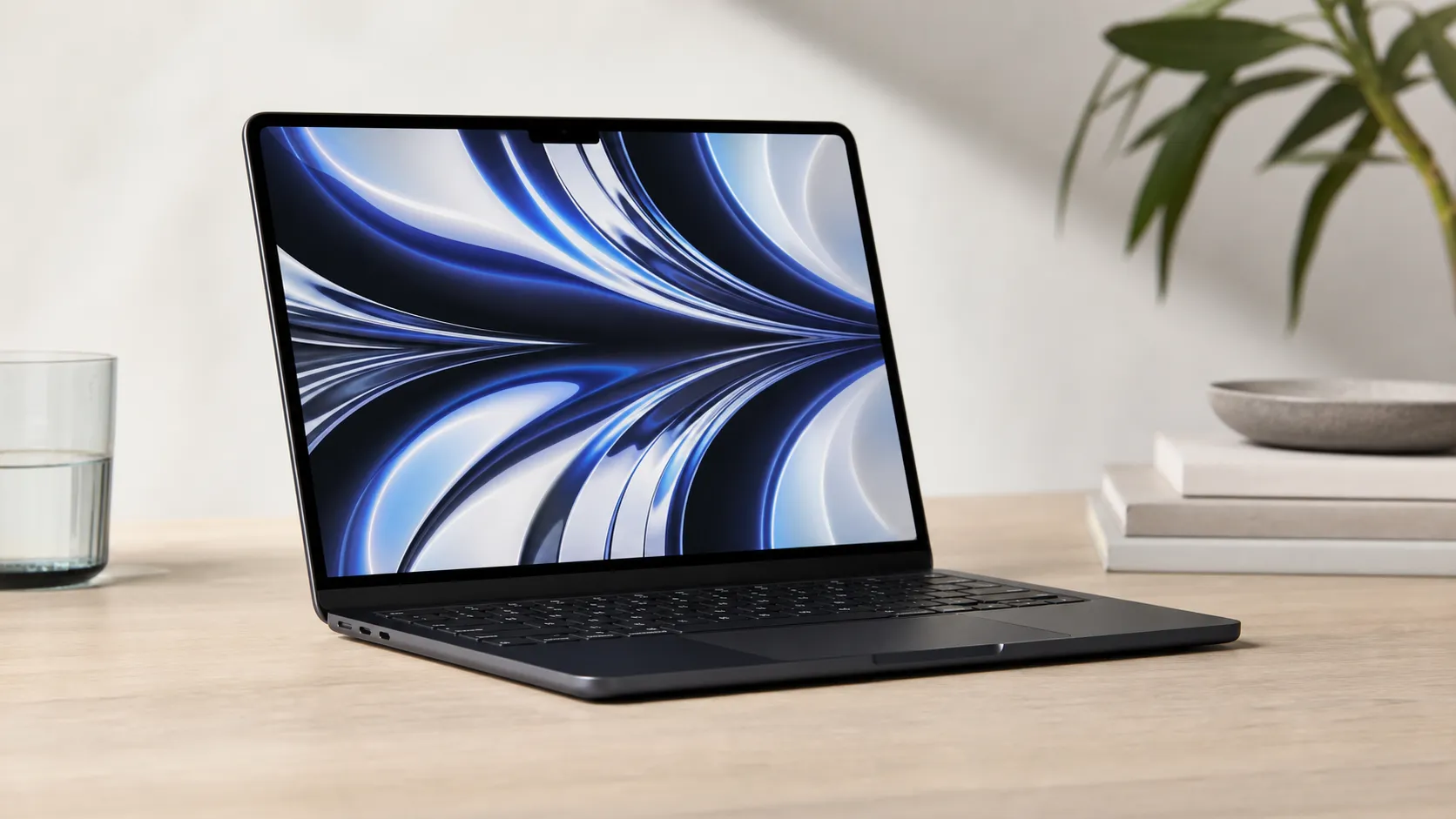
Apple MacBook Air (13-inch, M2) Review — 2026
A slim, quiet, and battery‑friendly choice for students and professionals. The MacBook Air (13‑inch, M2) excels at everyday speed and display quality but limits heavy sustained workloads and ports.
 Tech & Gadgets
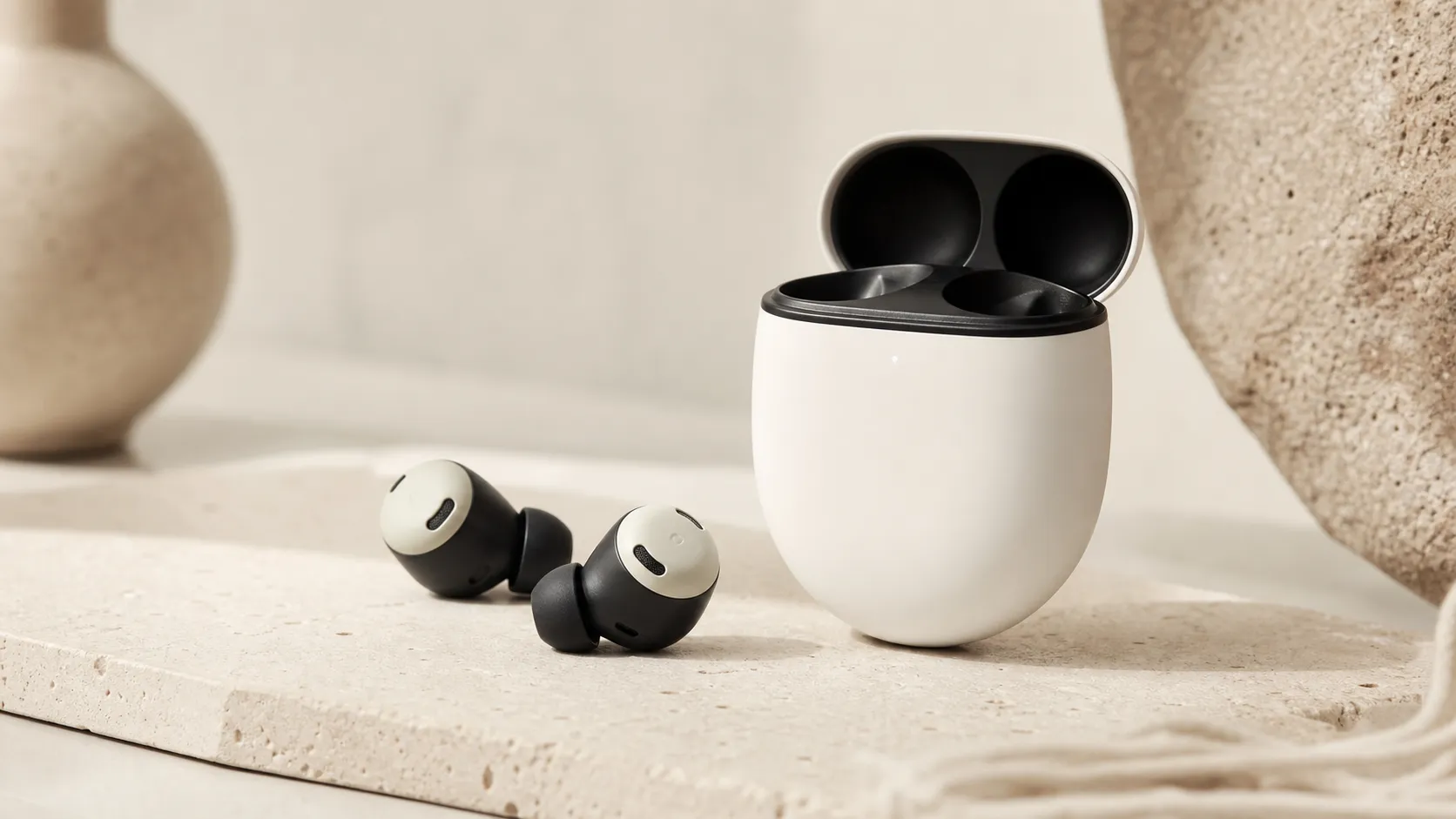
Google Pixel Buds Pro Review 2026
A polished, Android-first pair of true wireless earbuds with very good ANC, comfy fit, and strong battery life—great value for most buyers in 2026.
 Tech & Gadgets
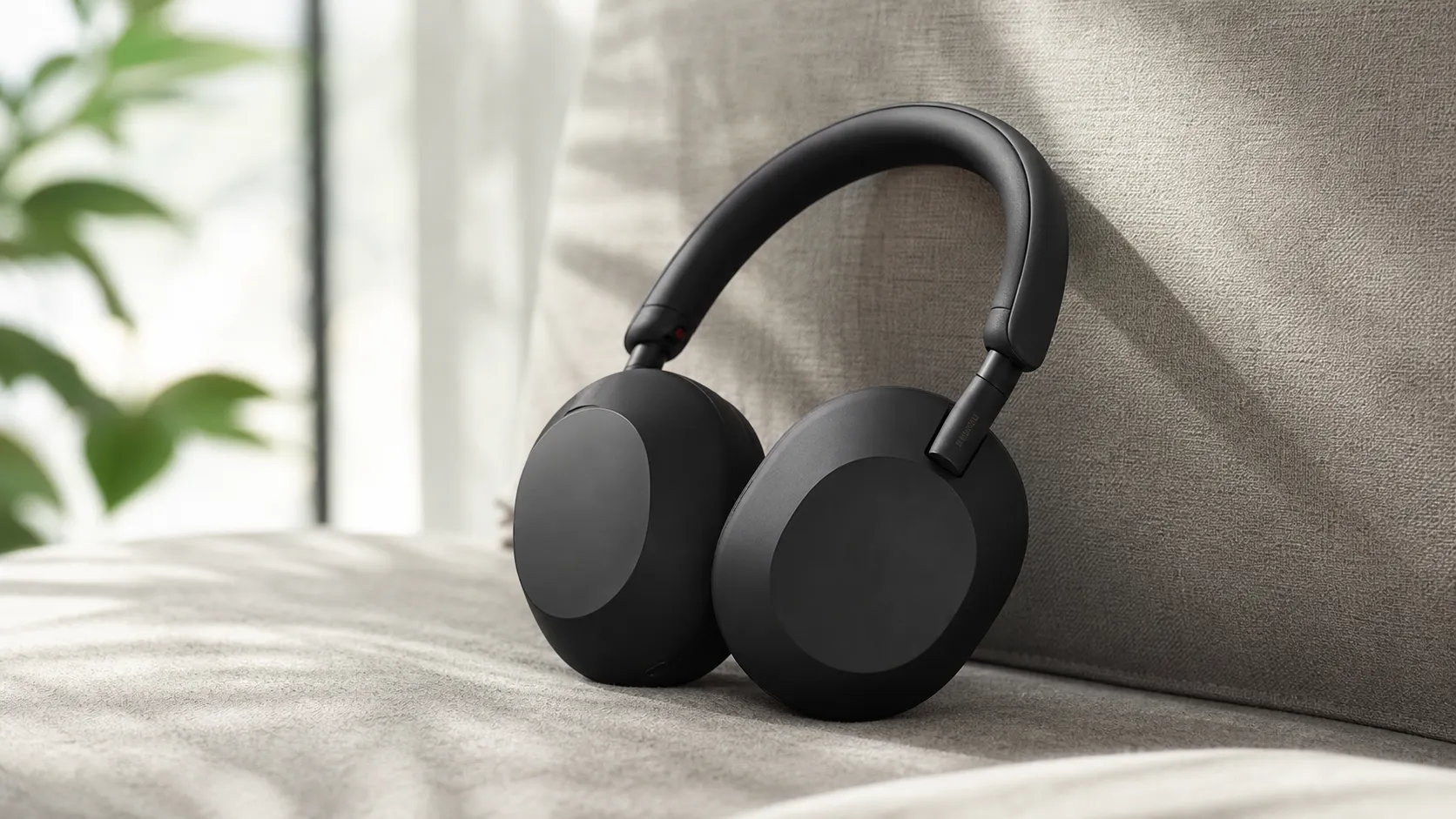
Sony WH-1000XM5 Review 2026 — ANC, Comfort & Value
Sony WH‑1000XM5: class‑leading ANC, exceptional comfort and long battery life — great for travel and calls, though sound tuning and a few durability reports divide opinions.